Troubleshooting Coherence X6
This guide covers the most common setup and app-creation problems in Coherence X6.
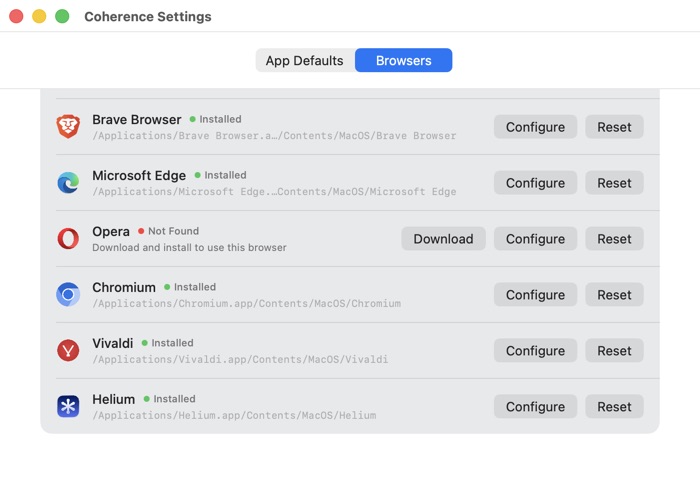
A browser is marked Not Found
- Confirm the browser is installed and can open normally.
- Move it to the Applications folder when possible.
- Open Coherence > Settings > Browsers.
- Select Configure beside the browser and choose its application.
- If an old custom path is shown, select Reset and check again.
Coherence cannot find a browser profile
- Confirm the browser selected under Browser Engine is the browser whose data you want to import.
- Launch that browser once and create or use a profile before retrying.
- Close the browser if its profile files are busy.
- Check whether the profile is stored in a nonstandard or managed location.
- Opera profile import is not currently supported.
The browser-data import section only appears when Coherence can locate compatible source data.
Extensions are missing from the import list
Choose the correct source profile and wait for Loading extensions… to finish. Coherence lists compatible installed extensions from that profile. Built-in, managed, unpacked, or otherwise restricted extensions may not be importable.
You can install additional extensions from the appropriate Chromium extension store after creating the app.
A website icon cannot be fetched
- Confirm the URL is valid and reachable.
- Include the site’s port if it uses a nonstandard port.
- Select the globe button beside Website URL to retry.
- Select the folder button and choose a square image from your Mac if the site does not publish a usable icon.
The older Coherence X4 “Error creating icon” issue is not the expected X6 behavior. If you still see that exact message, update Coherence and the affected app.
The app opens incorrectly or uses the wrong engine
Open the app’s gear menu in Your Apps, select Edit, and confirm Browser Engine. Quit the generated app before selecting Update App.
If the app was moved or renamed manually, use Show in Finder to verify the path tracked by Coherence. Updating the app can repair current-generation metadata.
Coherence Helper is missing or disabled
Quit the app, edit it in Coherence, and select Update App. Reopen the app and enable Coherence Helper if the browser asks. See The Coherence Helper extension.
Links open in the wrong place
Edit the app and inspect Link Routing:
- Rules apply from top to bottom.
- The first matching rule wins.
- A broad rule above a narrow rule can hide the narrow rule.
- Links that match no rule controls the fallback destination.
- A removed browser or Coherence app causes routing to fall back to the system default browser.
See Controlling where links open with Link Routing.
Earlier apps are missing from Your Apps or Export
Choose Coherence > Update Apps… and update the earlier-generation apps. X6 filters its library and export list to the current generation until those apps are migrated.
The free version says the app limit was reached
The direct-download free version supports one current-generation app with no time limit. Delete the existing app if you want to replace it, or activate a license to create unlimited apps. Apps from an earlier Coherence generation do not consume the X6 free-app allowance until they are updated into X6.
The old “Chrome profile can’t be null” message appears
That article documented an X4-era Brave and Edge creation issue and is not part of the current X6 flow. Update to the latest Coherence X6 build, configure the selected browser under Settings > Browsers, and retry. If the message remains, contact support with:
- Your macOS and Coherence versions.
- The selected browser and its version.
- Whether the browser is installed in
/Applicationsor configured elsewhere. - The exact step where the message appears.
Still need help?
Contact BZG Support and include the smallest set of details needed to reproduce the problem. Do not send passwords, cookies, exported Keychain data, or other private browsing information.