Importing data from your browser
Coherence X6 can make a one-time copy of data from an existing browser profile while creating an app. This lets you begin with familiar bookmarks, extensions, preferences, or saved sign-ins without connecting the new app to your everyday browser profile.
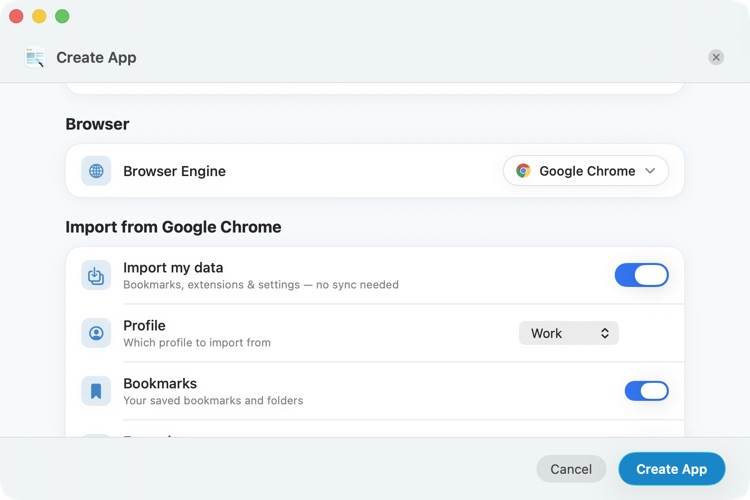
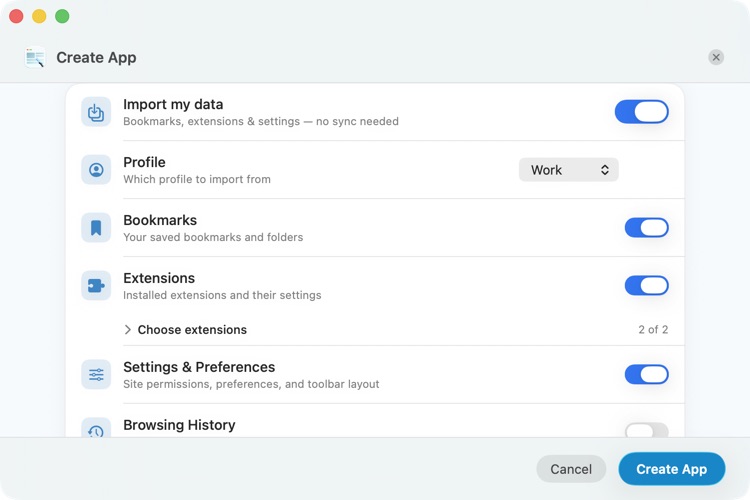
What can be imported
You can choose any combination of:
- Bookmarks — saved bookmarks and folders.
- Extensions — selected installed extensions and their settings.
- Settings & Preferences — site permissions, browser preferences, and toolbar layout.
- Browsing History — visited sites, top sites, shortcuts, and favicons.
- Passwords & Autofill — saved logins and autofill data.
The source browser is left untouched. The copy does not sync back to the browser, and later changes made in either location do not automatically appear in the other.
Import data while creating an app
- On the Create App page, choose the browser engine whose data you want to copy.
- Under Import from [Browser], turn on Import my data.
- If multiple profiles are available, choose the source from Profile.
- Turn individual data categories on or off.
- If Extensions is enabled, expand Choose extensions and select the extensions to copy.
- Finish configuring the app and select Create App.
Passwords and Keychain access
Importing Passwords & Autofill may cause macOS to request Keychain access. Review the macOS prompt and approve it only if you intend to copy saved sign-in information into the new app.
Some credentials can remain protected by the source browser or macOS and may need to be entered again. Coherence never turns this import into ongoing synchronization.
Availability and limitations
- Import requires compatible browser profile data on the Mac.
- Opera’s profile layout is not currently supported for browser-data import.
- If Coherence finds no profile, confirm that the selected browser has been opened and used at least once.
- Close the source browser before retrying if data appears incomplete or a profile file is busy.
- Browser policies can prevent some managed extensions or settings from being copied.
Set import defaults
Go to Coherence > Settings > App Defaults to have new apps begin with browser-data import enabled and to choose the categories selected by default. You still select the source profile during app creation.