Creating your first Coherence app
Coherence X6 uses a single creation page. You can review every important setting without stepping through separate wizard windows.
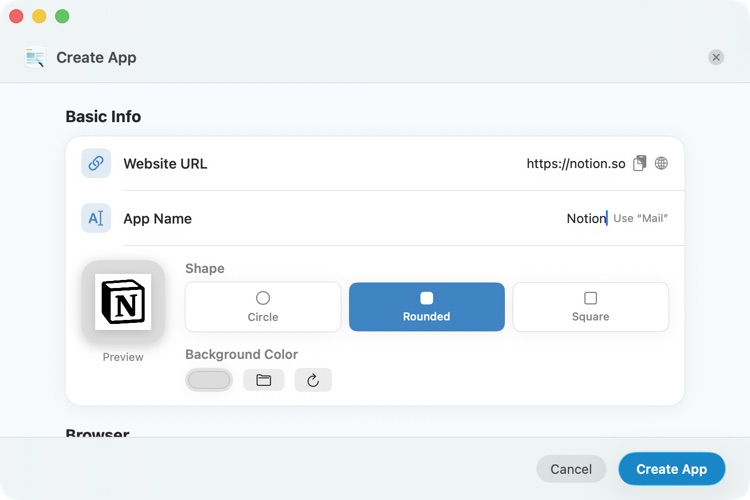
1. Enter the website and app name
Select Create New App from the Coherence home screen.
Under Basic Info:
- Enter the primary site in Website URL. You can enter
example.comor a complete URL such ashttps://app.example.com/dashboard. - Enter the name that should appear in Finder and the Dock.
- If Coherence suggests a name from the site, select Use “[name]” to accept it.
Coherence attempts to fetch the website icon automatically. Select the globe button to fetch it again.
2. Customize the icon
The preview shows how the finished app icon will look.
- Choose an icon shape.
- Choose a background color.
- Select the folder button to use an image from your Mac.
- Select the reset button to return to the website icon.
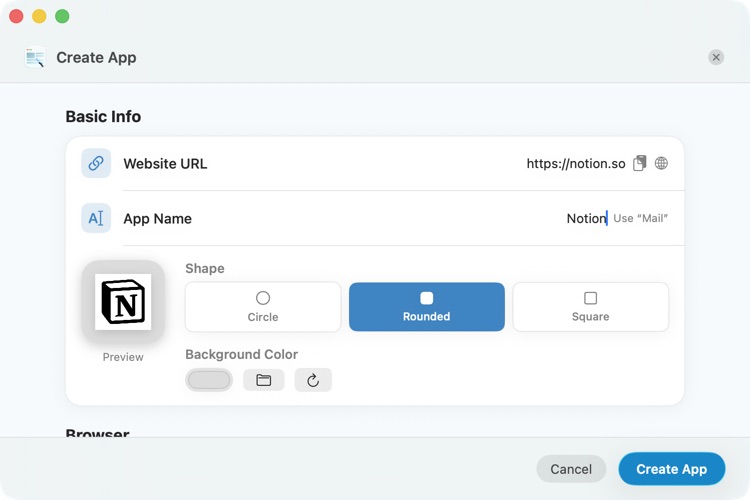
For best results, use a square source image with generous resolution. Coherence creates all icon sizes required by macOS.
3. Choose a browser engine
Under Browser, select Browser Engine and choose an installed engine. Installed browsers appear first, with recently used choices prioritized.
Coherence supports Google Chrome, Chrome Canary, Brave Browser, Microsoft Edge, Opera, Chromium, Vivaldi, and Helium. Selecting an engine that is not installed opens browser configuration so you can install it or point Coherence to its location.
The chosen engine is bundled into the generated app. The app does not share an active browsing session with your regular browser unless you explicitly import data during creation.
4. Optionally import browser data
Under Import from [Browser], turn on Import my data to make a one-time copy of selected information from an existing profile. You can copy bookmarks, chosen extensions, settings and preferences, browsing history, and passwords and autofill.
See Importing data from your browser before importing passwords or extension data.
5. Choose app options
Under Options, configure the behavior you want:
- Multi-tab support creates a browser-style app with one or more tabs.
- Incognito mode always opens the configured URLs in a private window. Incognito apps require multi-tab support.
- Register app as a browser adds the app to compatible macOS Open in menus. It does not make the app your default browser.
- Restore tabs on launch reopens the tabs from the previous session.
- Save location chooses where the generated
.appis stored.
Opera always uses multi-tab support.
6. Configure Link Routing
Link Routing determines whether clicked links stay inside the app, open in your default browser, open in a specific installed browser, or open in another Coherence app.
New apps keep unmatched links inside the app unless you choose another default. Add rules only when you want special handling. See Controlling where links open with Link Routing.
7. Create the app
Review the page and select Create App. Coherence shows its progress while building the application.
When App Created appears, you can:
- Select Launch App to open it.
- Select Reveal in Finder to show the generated app.
- Select Done to return to your app library.
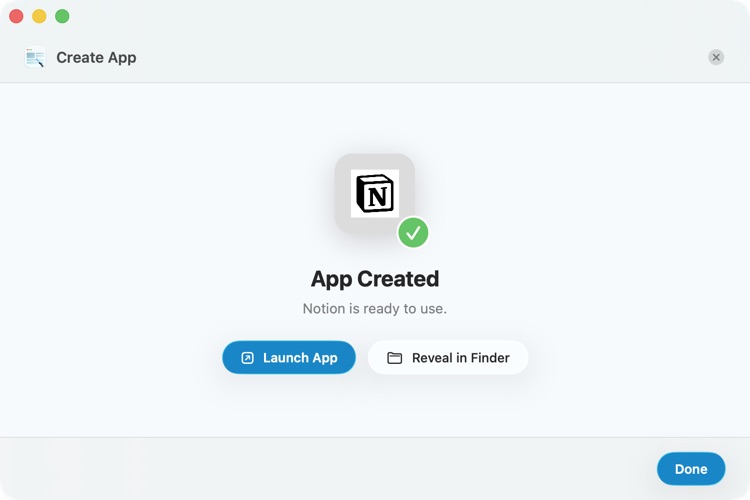
Your app is now independent of the creation tool. Deleting Coherence X6 does not automatically delete apps you have already created, although Coherence is required to edit, update, or recreate them.