Link Forwarding in Unite Pro
Link Forwarding controls what happens when you click a link that leads outside your app's primary domain. By default, Unite apps are focused — they stay on the site they were built for. Link Forwarding gives you precise control over that boundary.
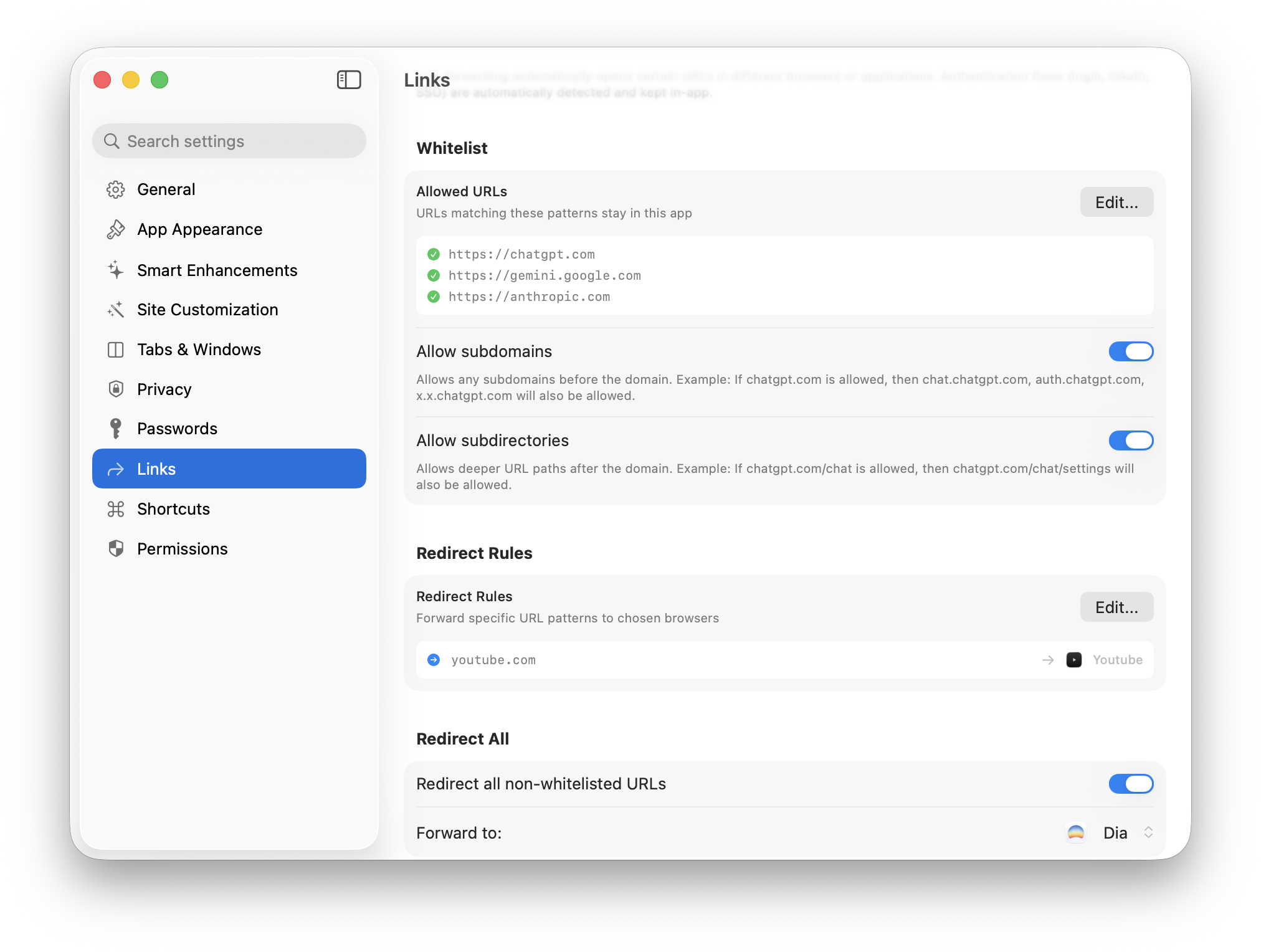
How It Works
When link forwarding is enabled, clicking a link to an external domain automatically opens it in your default browser (Safari, Chrome, Arc, etc.) instead of inside the Unite app. Your Unite app stays focused on its intended site.
When link forwarding is disabled, all links — including external ones — open inside the Unite app in a new tab.
To enable or disable: Go to Settings → Links, or toggle it instantly in Quick Settings.
Domain Whitelist (Keep in App)
Even with link forwarding enabled, some domains should stay in-app. For example, a Gmail app should keep Google accounts pages (accounts.google.com ) and Google Meet links in-app rather than sending them to the browser.
Add domains to the whitelist to keep them inside the app:
- Go to Settings → Links → Whitelist.
- Click + and enter a domain (e.g.,
accounts.google.com). - Toggle the entry on.
Any URL matching a whitelisted domain opens inside the app regardless of link forwarding being on.
SSO and OAuth Handling
Common single sign-on (SSO) and OAuth flows — like "Sign in with Google", "Sign in with Microsoft", or GitHub OAuth — are automatically kept in-app by default. This prevents SSO from breaking because the auth popup opens in the wrong browser.
If you encounter a sign-in flow that's being incorrectly forwarded to the browser, add the relevant auth domain to your whitelist.
Redirect Rules
Redirect rules give you even finer-grained control. Instead of simply forwarding to the default browser, you can route specific URLs to a different Unite app, a specific browser, or another app entirely.
Adding a redirect rule
- Go to Settings → Links → Redirect Rules.
- Click + to add a rule.
- Enter a URL pattern (e.g.,
*://meet.google.com/*). - Choose the destination:
- Default Browser — Opens in your system default browser
- Specific Unite app — Routes to another Unite app by name
- Another app — Pick any app on your Mac using the app picker
Rules are evaluated in order. The first matching rule is used.
Example use cases
| URL Pattern | Route to | Why |
|---|---|---|
*://meet.google.com/* |
Google Meet (Unite app) | Keep meetings in a dedicated app |
*://github.com/* |
GitHub (Unite app) | Send GitHub links to your GitHub app |
*://zoom.us/* |
Zoom.app | Open Zoom links in the native app |
Redirect All Links
If you want every link to open in the browser (not just external ones), enable Redirect All in Settings → Links. This effectively turns the Unite app into a single-page view with no in-app navigation.
"Browse In" Menu Integration
If an app has Show in "Browse In" menus enabled, other Unite apps can target it as a redirect destination from their own link forwarding rules. This creates a network of interconnected apps that route to each other intelligently.