Site Customization: Scripts, Styles, and Element Removal in Unite Pro
Unite apps give you full control over how a website looks and behaves, through three tools: Site Magician for visual element removal, User Scripts for custom JavaScript, and User Styles for custom CSS. All three live in Settings → Site Customization.
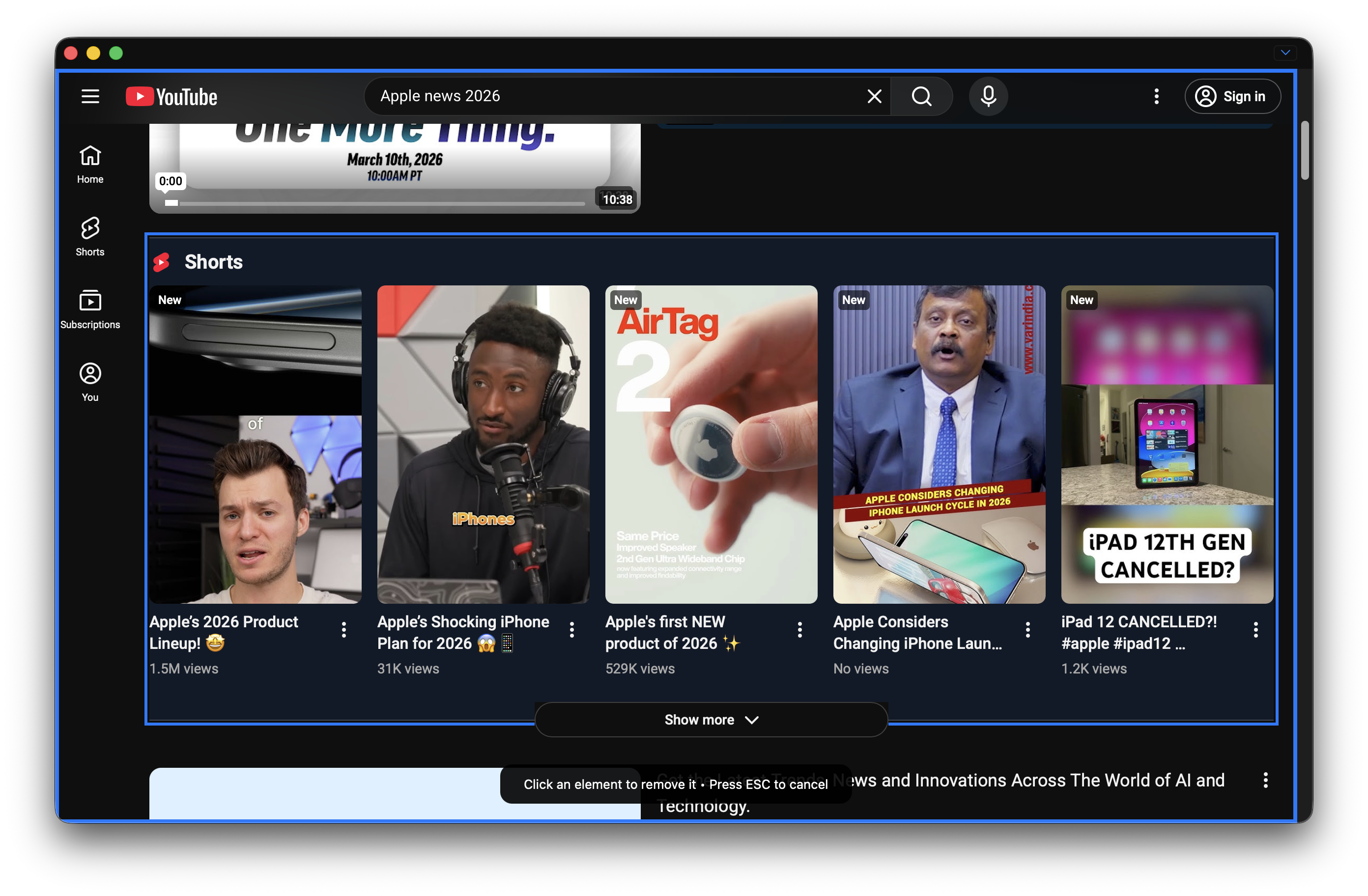
Site Customizer: Visual Element Removal
Site Magician lets you point and click to permanently remove page elements you don't want — sidebars, banners, promotional popups, cookie notices, header ads, or anything else that clutters the page.
How to use it
- Open the Unite app.
- Go to Settings → Site Customization → Element Remover, or click the Customize Site button in the toolbar.
- The page enters selection mode. Hover over any element to highlight it.
- Click the element to remove it. It disappears immediately and stays gone on every subsequent page load.
- Press Escape or click Done to exit selection mode.
Managing removed elements
A list of all removed elements appears in Settings → Site Customization → Element Remover. You can re-enable any element from this list if you change your mind.
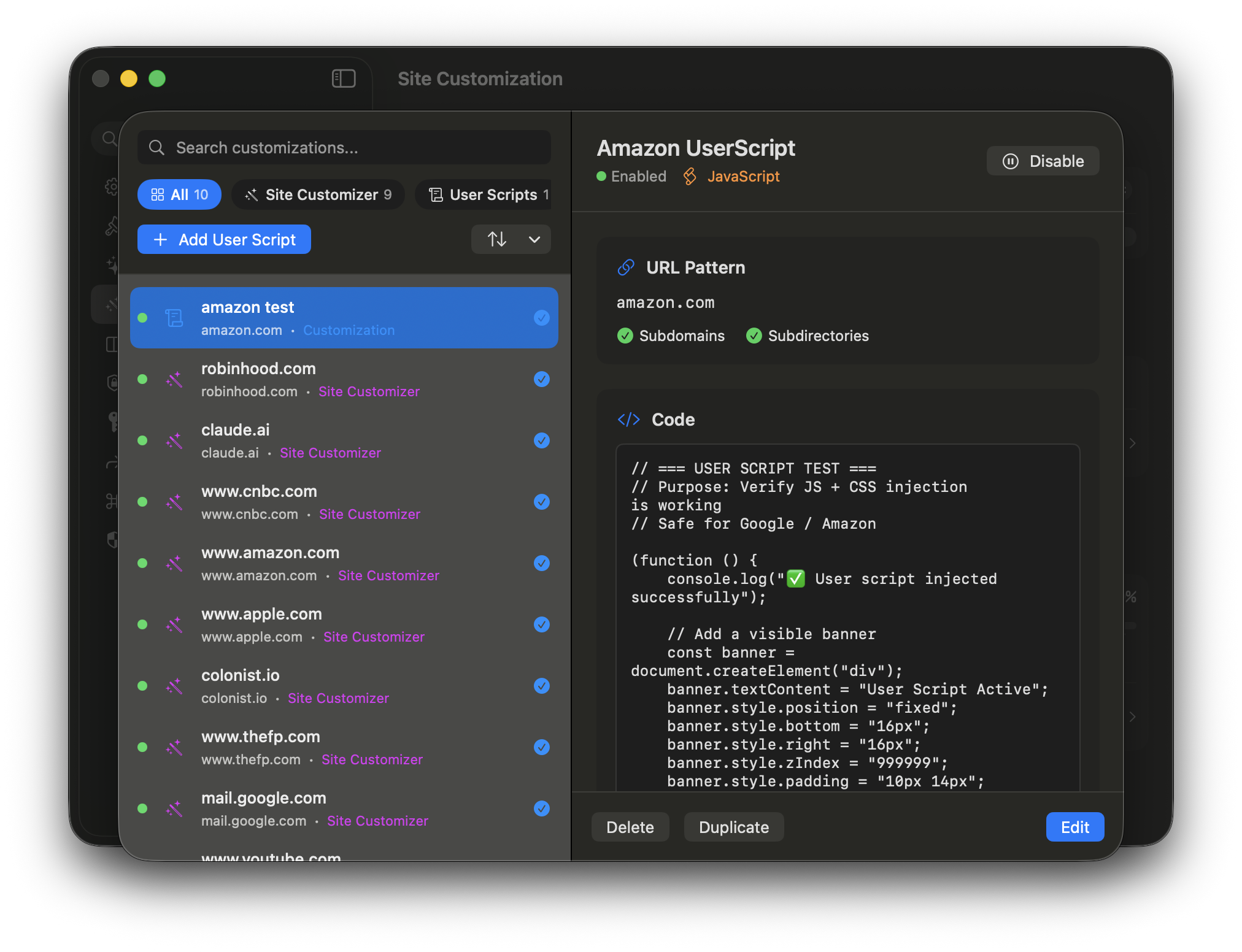
User Scripts (Custom JavaScript)
User Scripts let you run custom JavaScript on any page loaded in the app. This is the same concept as browser extensions like Userscripts or Greasemonkey.
Adding a script
- Go to Settings → Site Customization → User Scripts.
- Click + to create a new script.
- Give the script a name and paste or write your JavaScript in the editor.
- Set the URL pattern to target specific pages (e.g.,
*://mail.google.com/*) or leave it blank to run on all pages. - Toggle the script on.
Script execution timing
Scripts can be set to run:
- At document start — Before the page renders (good for blocking things early)
- At document end — After the DOM is fully loaded (most common)
Per-URL targeting
Each script has a URL pattern field. Use wildcards:
*://example.com/*— All pages on example.com*://example.com/inbox*— Only inbox pages- Leave blank to run everywhere in the app
User Styles (Custom CSS)
User Styles let you inject custom CSS into pages. Use this to tweak fonts, colors, spacing, hide elements with CSS, or restyle entire sections of a page.
Adding a style
- Go to Settings → Site Customization → User Styles.
- Click + to create a new style sheet.
- Name it and write your CSS in the editor.
- Set the URL pattern for targeting specific pages.
- Toggle the style on.
Example: Make text larger on a specific site
body {
  font-size: 18px !important;
  line-height: 1.7 !important;
}
Cross-App Sync
Scripts, styles, and element customizations can be shared across all your Unite apps via the cross-app sync system. When sync is enabled, any script or style you create is also available in your other Unite apps — you only need to toggle them on in each app that should use them.
To enable sync:
Go to Settings → Site Customization and toggle Sync scripts/styles across apps.
Sync uses a shared App Group container on your Mac. No cloud account required.
The Rebuilt Scripts & Styles Engine
Unite Pro's customization engine was rewritten from the ground up for reliability. Key improvements:
- Scripts and styles apply consistently across page navigations, including single-page apps (React, Next.js, etc.)
- Shadow DOM injection for fonts and styles works correctly on modern web apps
- Per-URL targeting is more precise and supports path wildcards