Customizing App Appearance in Unite Pro
Each Unite app has an extensive set of appearance settings that let you control how the window looks, what interface elements are shown or hidden, and how the site renders visually. These settings are per-app and live in Settings → App Appearance (or Design in some panes).
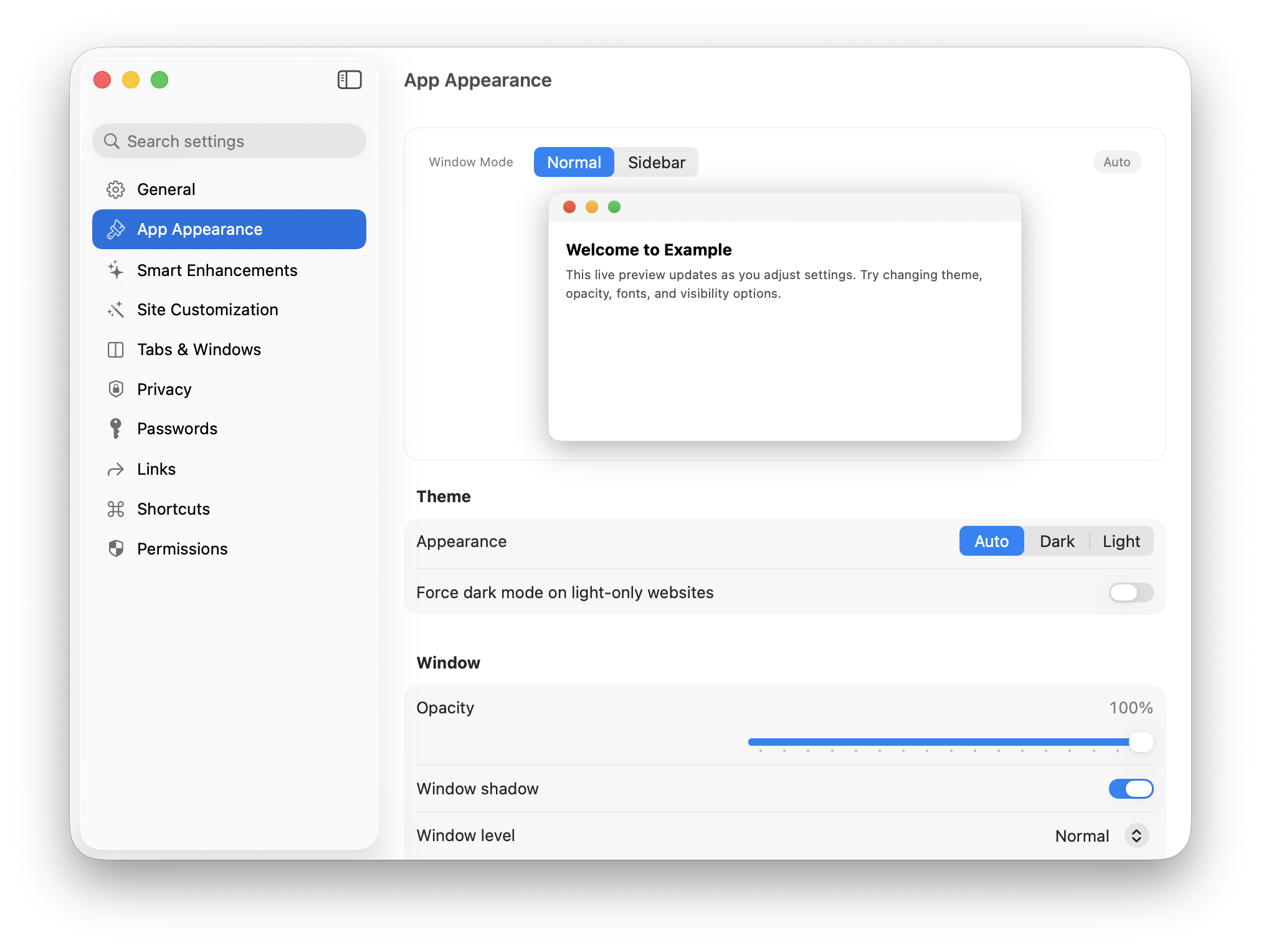
Opening Appearance Settings
- Open the Unite app you want to customize.
- Press ⌘, or go to the app menu → Preferences…
- Select App Appearance from the sidebar.
System Appearance
Set whether the app follows macOS or forces a specific appearance:
- Auto — Follows the macOS system setting (recommended)
- Light — Always uses the light appearance, regardless of system setting
- Dark — Always uses the dark appearance
This affects the app's native chrome (toolbar, tab bar, window frame) but not the website content itself. To force dark mode on the website content, see Auto Dark Mode below.
Window Color
Unite can automatically sample the dominant color of the website and apply it as a subtle tint to the window's title bar and toolbar. This gives each app a distinct identity that matches its brand.
- Auto — Samples from the site's favicon or page accent color
- Custom — Pick any color with the color picker
- None — No tint; standard macOS toolbar color
Window Opacity and Shadow
Opacity — Reduce the window opacity to create a translucent effect. Drag the slider to your preference. Note: very low opacity can make text hard to read.
Shadow — Toggle the window drop shadow on or off. Turning it off creates a seamless look when the app is edge-to-edge or used in a tiled layout.
Hiding Window Chrome
For a cleaner, more immersive look, you can selectively hide parts of the window:
- Hide toolbar — Removes the navigation toolbar entirely. You can still navigate with keyboard shortcuts.
- Hide title bar — Removes the title bar. The traffic lights (close/minimize/maximize) move into the toolbar area.
- Hide close/minimize/maximize buttons — Removes the traffic lights entirely.
- Hide progress indicator — Removes the loading spinner in the title bar.
Tip: A popular combination for distraction-free apps is hiding the toolbar and title bar together. Use keyboard shortcuts for navigation.
Tab Appearance
- Hide tab titles — Shows only favicons in the tab bar, making tabs more compact
- Close button on right — Moves the tab close button to the right side of each tab (macOS default is on the left on hover)
- Show tab title on window title bar — Displays the current tab's title in the window title
Custom Fonts
Replace the font used on the website with a font of your choice. This injects a custom CSS override into every page. Select a font from the system font picker. Useful for improving readability on sites with small or hard-to-read typography.
Auto Dark Mode
Force any website to render in dark mode, even if the site doesn't natively support it. Unite injects a CSS filter that inverts colors and adjusts contrast. It works on most sites but may look imperfect on image-heavy pages.
Toggle in Settings → App Appearance → Auto Dark Mode.
Floating Window (Always on Top)
Make the window always float above other windows, even when another app is in focus. Go to Settings → App Appearance → Window Level and enable Floating.
Useful for reference tools, monitors, or dashboards you want visible at all times.
Window on All Spaces
Keep the window visible on all macOS Spaces (virtual desktops). Enable via Settings → App Appearance → Spaces.