Dock Monitor and Badges
Unite apps can show live information in the dock in two ways: Dock Monitor pins a real-time live view of any region of the website directly onto the dock icon, while Dock Badges show unread counts like the system does for Mail and Messages.
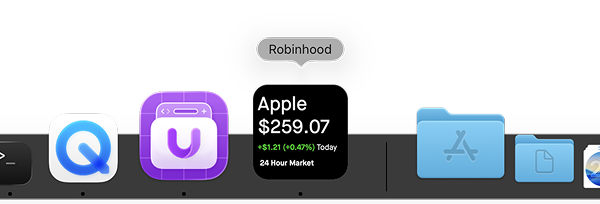
Dock Monitor
Dock Monitor captures a specific region of your Unite app's web content and mirrors it live onto the app's dock icon. The dock icon becomes a miniature live window into the app — updating in real time as the page changes.
Setting Up Dock Monitor
- Open a Unite app.
- Go to View → Dock Monitor or use the keyboard shortcut.
- An overlay appears on the page with a selection rectangle. Drag the handles to choose the region you want to monitor (e.g., an inbox count, a live chart, a status widget).
- Click Set Region to confirm.
The dock icon now shows a live render of that region. Clicking the dock icon brings the Unite app to the front as usual.
Adjusting the Region
To change the monitored region:
- Go to View → Dock Monitor → Change Region.
- A new selection overlay appears. Resize and reposition, then confirm.
Disabling Dock Monitor
Go to View → Dock Monitor → Disable, or toggle it off in Settings → Smart Enhancements.
Dock Badges
Dock Badges show a numeric badge on the dock icon — the same red bubble used by macOS Mail, Messages, and other native apps. Unite reads unread counts directly from the website's page content and reflects them on the icon.
Badges are supported across four categories:
| Category | Example sites |
|---|---|
| Gmail, Outlook, Fastmail, Proton Mail | |
| Chat | Slack, Discord, WhatsApp Web |
| Work | Linear, Jira, Github |
| AI | ChatGPT, Claude, Gemini, Grok |
Enabling Badges
When you create an app for a supported site, dock badges are enabled by default. The badge counts update automatically as you use the app.
To enable or adjust badges on an existing app:
- Open the app.
- Go to Settings → Smart Enhancements.
- Toggle Dock Badges on.
- Under badge sources, enable the relevant categories.
Badge Accuracy
Badges reflect the unread count as shown by the website itself. If the site shows "99+" in its own tab indicator, Unite shows 99 on the dock icon. If the site doesn't update its count until you open the page, Unite can only update after that happens.
Picture-in-Picture
Media playing in a Unite app can be sent to Picture-in-Picture (PiP) — a floating mini-player that stays above other windows.
Right-click a video on the page and choose Enter Picture in Picture, or use the PiP button in the video controls if the site shows one. PiP continues playing when you switch to another app.