Unite Pro Preferences
Unite Pro's Preferences window (⌘,) controls global settings for the creation tool itself — things like where apps are saved, what defaults apply to new apps, and how Unite Pro looks and behaves. These are separate from the per-app settings inside each created app.
Opening Preferences
Go to Unite → Preferences… or press ⌘, while Unite Pro is the frontmost app.
General
Default save location
The folder where newly created apps are placed. The default is /Applications . Click Change to choose a different folder. You can also override this per-app during creation.
Unite Pro appearance
Choose System (follows your macOS appearance setting), Light, or Dark for the Unite Pro window itself. This does not affect the appearance of your created apps.
Smart URL formatting
When enabled, Unite cleans up URLs as you type during app creation — removing tracking parameters, stripping unnecessary fragments, and normalizing the domain. Disable this if you need to use raw URLs exactly as entered.
Sound effects
Toggle the subtle sound effects that play when creating an app, completing an action, or triggering an alert. When enabled, you can choose from several completion sounds using the picker below.
Language
Sets the language for the Unite Pro interface. Currently supported: English, Spanish, French, German, Simplified Chinese, Hebrew, and Japanese.
Automatically update created apps
When Unite Pro receives an update, it can automatically apply the update to all your existing created apps in the background. This is enabled by default. Disable if you prefer to manage app updates manually.
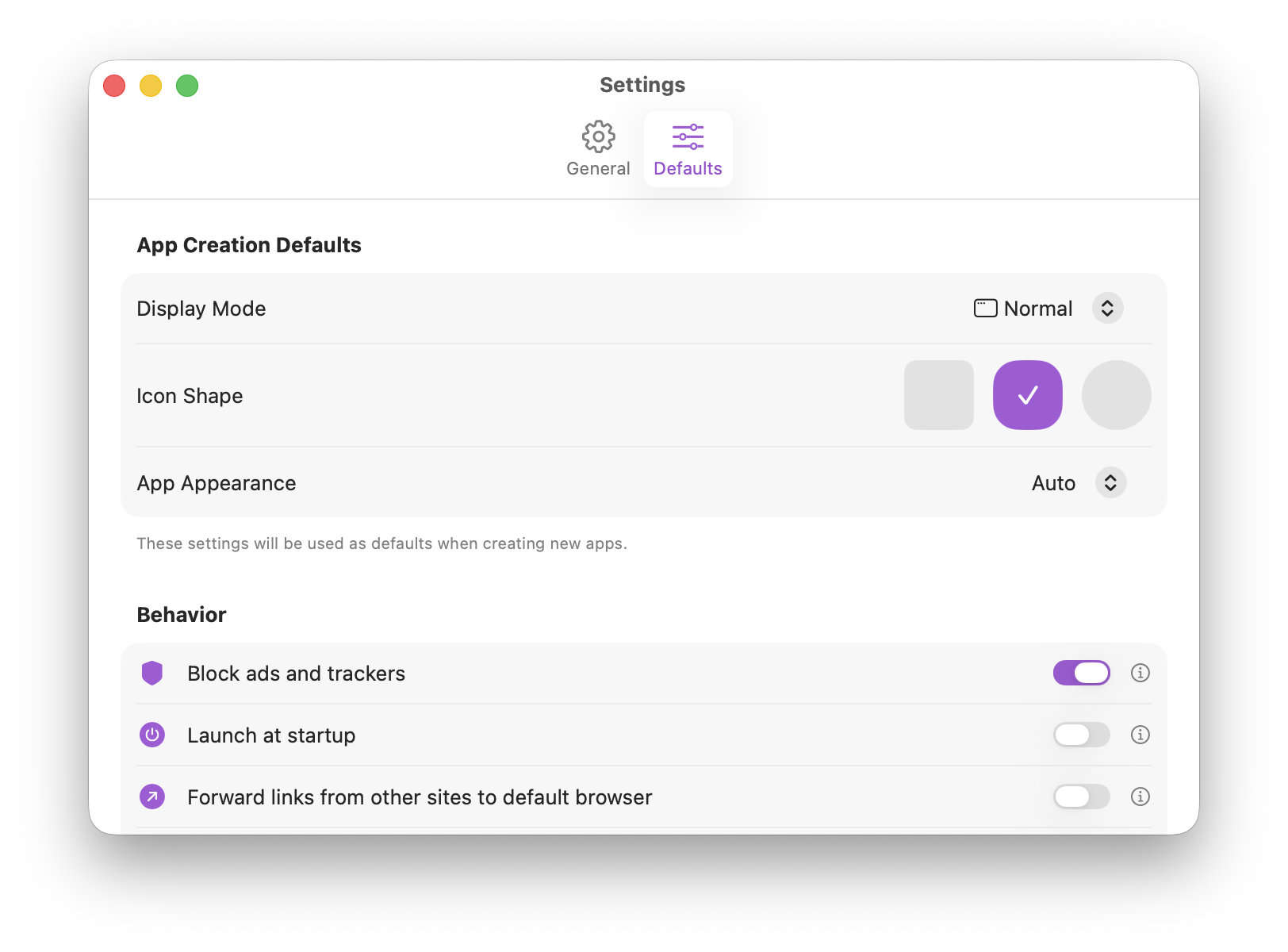
Defaults
The Defaults pane sets the initial values for settings in the creation sheet — so you don't have to configure the same options every time you create a new app. These are purely defaults; you can always change any setting for a specific app during creation or by editing it later.
Display mode
The default mode for new apps: Normal, Sidebar, or Menu Bar.
Icon shape
The default icon shape: Square, Rounded (macOS standard), or Circle.
App appearance
Auto (follows macOS), Light, or Dark.
Block ads
Whether ad blocking is on by default for new apps.
Launch at startup
Whether new apps default to launching at login.
Link forwarding
Whether external link forwarding is on by default.
Show in "Browse In" menus
Whether new apps are listed as options in the "Browse In" link context menu across other Unite apps.
Custom window size
Set a default window width and height for new Normal-mode apps. Several preset size options are listed (e.g., 1024×768, 1440×900) or you can enter custom pixel values.
Tips
- If you primarily create menu bar tools, set the default display mode to Menu Bar and save a lot of clicks.
- The language setting affects Unite Pro's own UI but does not change the language of websites inside your created apps — those follow the website itself.