Smart Enhancements in Unite Pro
Smart Enhancements are native macOS capabilities that Unite layers on top of supported websites. They let your Unite apps do things a regular browser tab never could — like showing unread badge counts on the dock icon, delivering native meeting reminders, or providing instant AI access from the menu bar.
How Detection Works
When you enter a URL during app creation, Unite checks it against a list of supported sites. If any enhancements are available, a "Smart Enhancements" section appears in the creation sheet with toggles for each one. They're all enabled by default — toggle off anything you don't want.
You can also enable or disable enhancements after creation by editing the app.
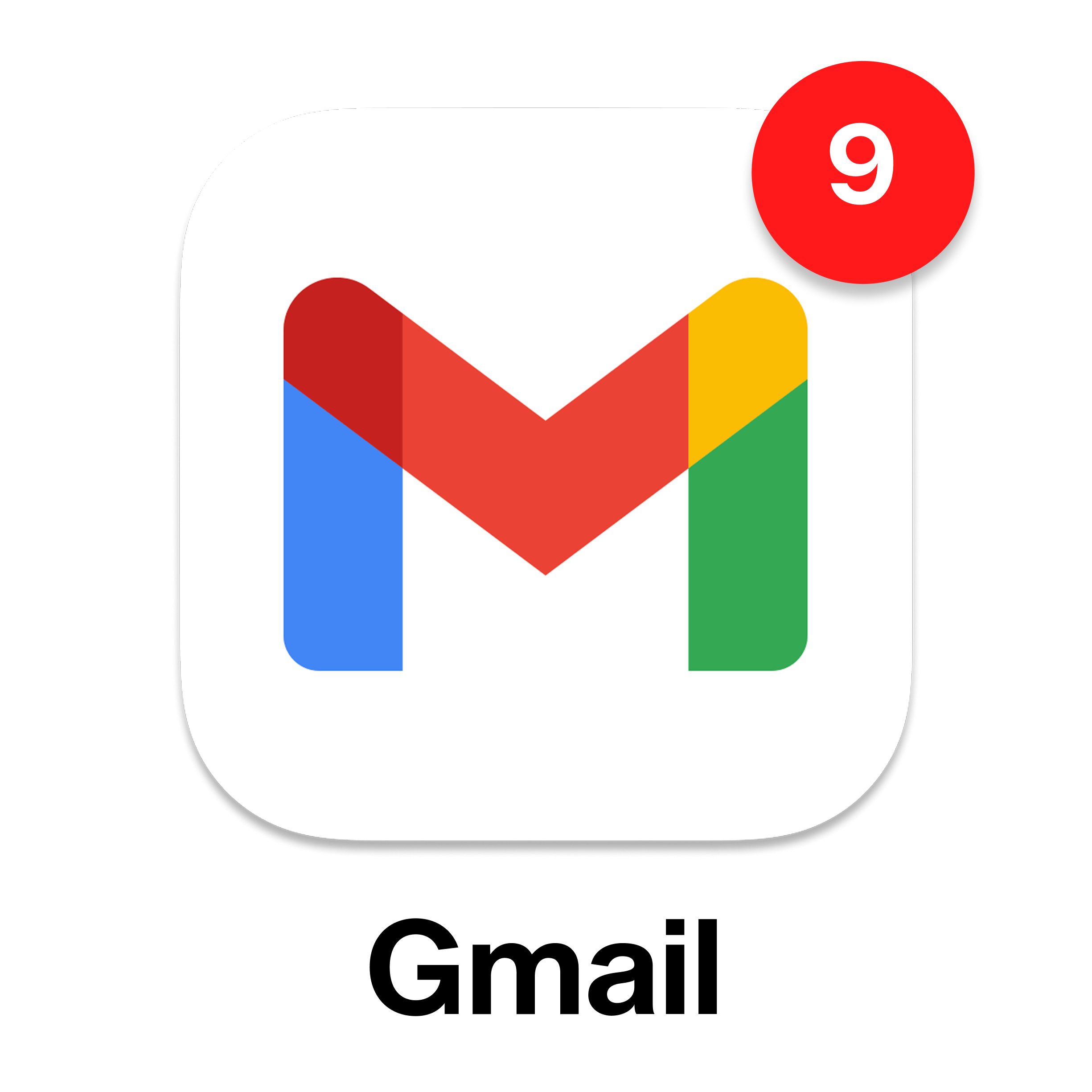
Dock Badges
Dock badges display an unread count on your app's dock icon — the same style used by Mail, Messages, and other native apps. Unite supports badges across four categories:
| Category | Example sites |
|---|---|
| Gmail, Outlook, Fastmail, Proton Mail | |
| Chat | Slack, Discord, WhatsApp Web |
| Work | Linear, Jira, Github |
| AI | ChatGPT, Claude, Gemini, Grok |
You can enable or disable each category independently. For example, you might want email badges but not work badges.
Where to configure: Open the app's Settings → Smart Enhancements.
Note: Dock badges require the app to be running. Unite reads the unread count directly from the website's page — no special API or server integration needed.
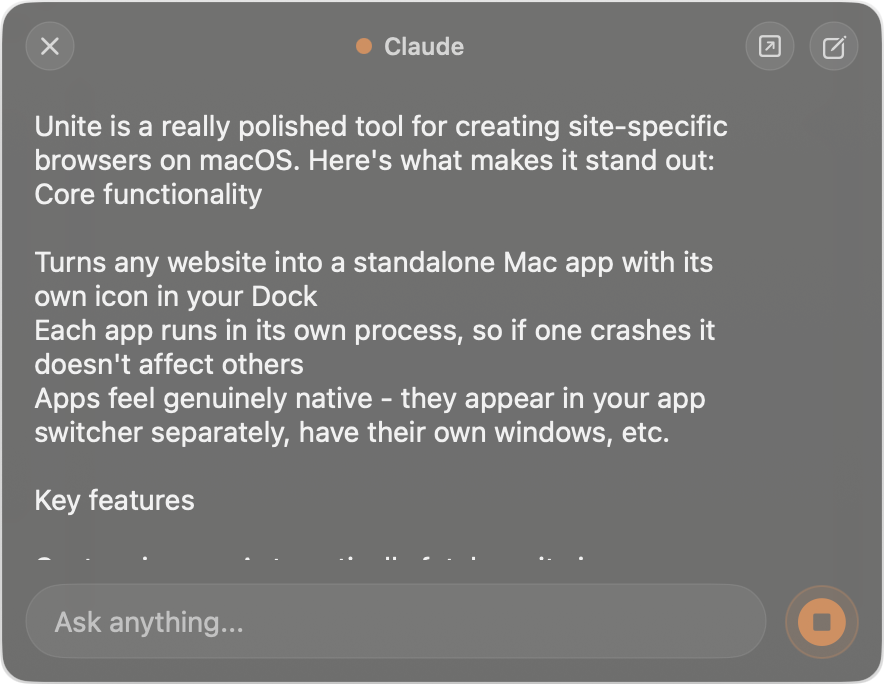
AI Companion
The AI Companion enhancement adds a persistent menu bar icon specifically for AI apps. It works with ChatGPT, Claude, Grok, and Gemini
With AI Companion enabled:
- A dedicated icon appears in your menu bar (separate from the app's main window or mode)
- Clicking it opens a compact overlay for quick prompt input
- You can use the AI without switching away from your current app or window
This is distinct from Menu Bar mode — you can have an AI app running in Normal mode as a full window and still have the AI Companion menu bar shortcut available at the same time.
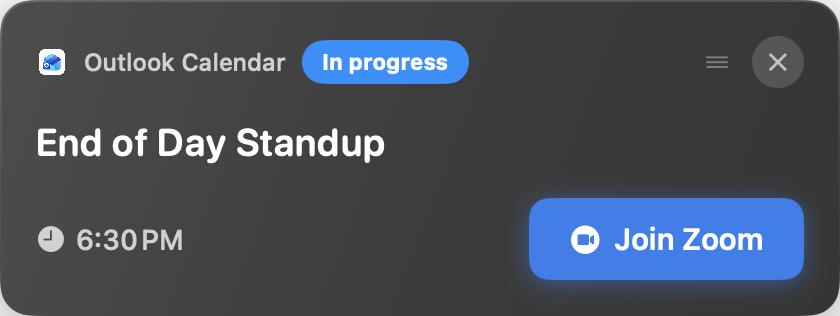
Meeting Notifications
When enabled on Google Calendar or Microsoft Outlook, Unite delivers system-wide alerts for upcoming calendar events.
Configuration options:
- Reminder time — Choose how many minutes before a meeting to receive the notification (e.g., 5, 10, 15 minutes)
- Also remind at start — Toggle on to get a second notification exactly when the meeting begins
- Open in — Choose which app opens when you click the notification (Unite app, system Calendar, or a specific video conferencing app)
- Google Calendar / Outlook — Enable or disable per calendar service independently
Where to configure: Open the app's Settings → Smart Enhancements → Meeting Notifications.
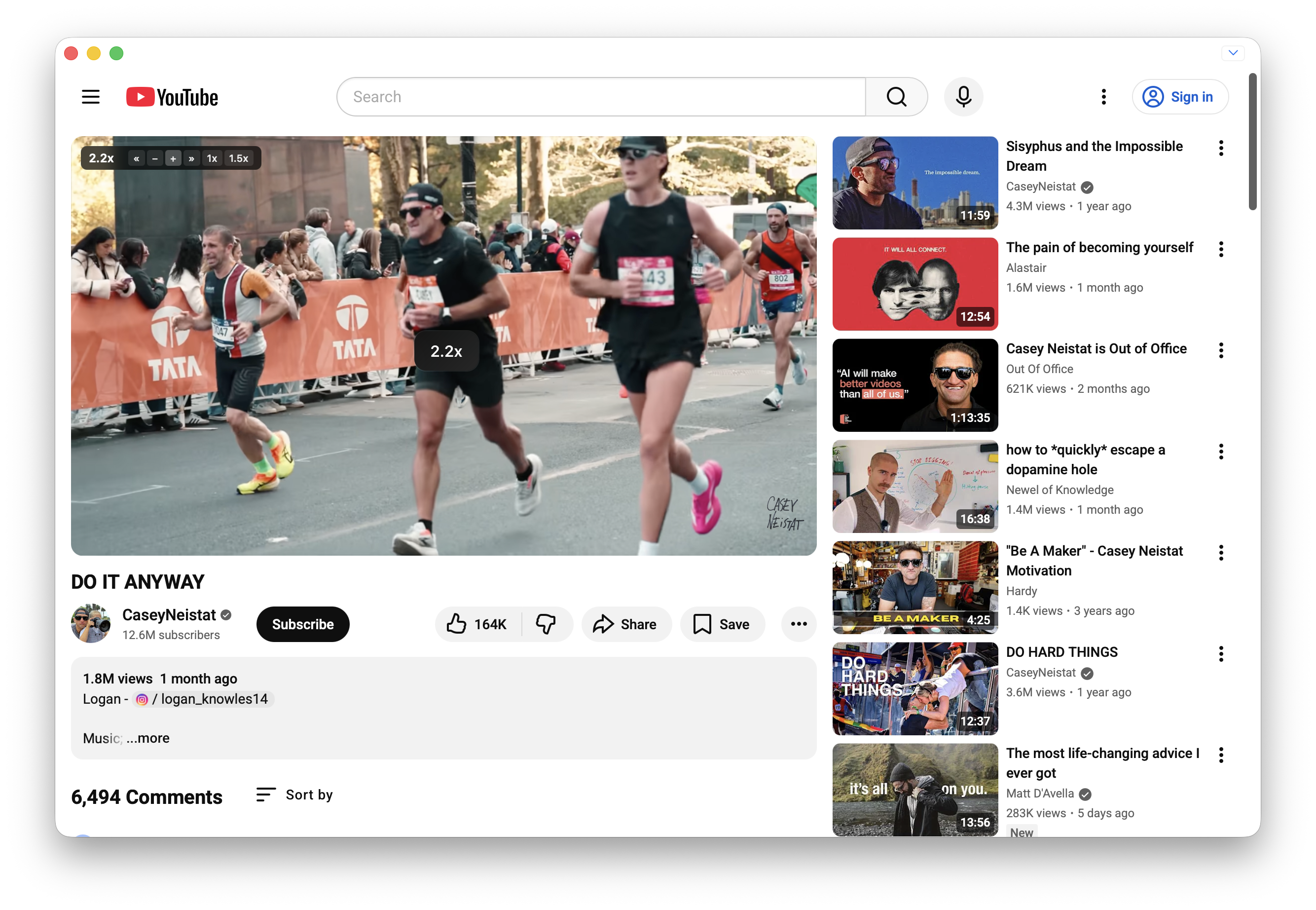
Video Speed Controls
For video sites like YouTube, Netflix, Vimeo, and others, Unite adds an on-screen playback speed control overlay. This lets you speed up or slow down video without relying on the site's own controls (which may not exist or may be limited).
The controls appear as an overlay in the video player. You can adjust the speed in increments (0.25x, 0.5x, 0.75x, 1x, 1.25x, 1.5x, 2x, etc.) or use keyboard shortcuts.
Where to configure: Open the app's Settings → Smart Enhancements → Video Speed Controls.
Enabling or Disabling After Creation
Smart Enhancements can be toggled at any time without editing or rebuilding the app:
- Open the created app.
- Go to Settings (gear icon or ⌘,).
- Open the Smart Enhancements pane.
- Toggle any enhancement on or off.
Changes take effect immediately.